
Digital Minimalism: Kyocera 902KC llms.txt
In August of this year, I deleted Twitter off of my phone, after what I found to be the final straw after months of garbage policy changes enforced by the rich egg who now owns the site.
While I have been using a minimal smartphone for years - that is to say, a smartphone with as few apps as I “felt possible” (more on that later) - what I found after deleting my main digital narcotic was that instead of spending less time on my phone as I expected, I was instead spending just blankly staring at my phone before either reading the news or finding some other way to waste time.
There is something deeply embarrassing about that to admit, but there is something to be said about the difference between having the willpower not to do something versus simply removing the something you don’t want to do.
For me, the solution was removing my smartphone from my life. I want to dedicate my time more wisely, and that’s far easier to do with a device that is not purpose built to distract me from the moment.
The first flip phone I tried was the Alcatel Go Flip 3, and I heartily recommend it. It features predictive typing, which makes texting less of a chore, and full FM radio - which, now not having it on my current flip phone, I deeply miss.
If you need a phone that does nothing beyond:
- Calling
- Texting
- Email (Poorly)
- Web Browsing (Poorly)
The Alcatel Go Flip 3 is a great phone and it may suit you needs. If you need something beyond that, well - in comes the Kyocera 902KC.
Japanese Flip Phones
If you’ve spent any time researching “dumbphones” you’ll know that Japanese Flip Phones are the gold standard in functionality, form factor, and build quality - the problem is finding one that works overseas.
After investigation, I went with the Kyocera Digno 902 KC, a reputable brand that - most importantly - functions with every major carrier in Canada.
The main difference between it, and what is available in Canada, is that it runs Android 8.1, meaning that you can sideload android apps onto it to pad out its functionality further.
The A202KC/A203KC is the successor model running Android 10 with better app compatibility and a faster CPU. It can also be rooted via MTKClient (the 902KC cannot). However, it loses the 902KC’s built-in flashlight, pedometer (used for auto-rotation), and infrared sensor (used for auto-brightness). The A202KC also uses more system storage (4.4GB vs 2.7GB of the 8GB internal). If you need the latest Android compatibility, consider the A202KC; if you prefer the extra hardware features, the 902KC remains solid.
Buying a 902KC
The easiest way to get a hold of this phone is to buy one off of ebay. I paid roughly ~$120 for mine.
Alternatively, if you’re comfortable with Japanese Shipping Forwarders, you might find a better deal buying directly from Yahoo Japan.
If you do accidentally buy a SIM Locked phone, this guide has pointers.
Network Bands
These phones are made for Japan - international compatibility is an afterthought. Before buying, verify the phone’s bands work with your carrier using CellMapper. You need at least 2 compatible 4G bands in your area.
If your carrier is an MVNO, look up which infrastructure they operate on and check that instead. I’d advise against contacting your carrier about these phones - they’ll usually just tell you to buy a new phone.
Out of the Box - What Works?
You’ll be able to put in a sim card (lift the back casing until it pops off, the sim slot is under the battery) and turn this thing on, and right away it should connect to the network for Phone Calls and SMS.
The UI will likely be entirely in Japanese - use Google Translate’s photo mode to navigate the settings menu and switch the phone to English.
The following is a breakdown of everything that either works, doesn’t work, or needs tweaking out of box.
| Feature | |
|---|---|
| SMS | ✔️ |
| Phone Calls | ✔️ |
| Bluetooth Headphones | ✔️ |
| Wifi Tethering | ✔️ |
| Flashlight (built-in) | ✔️ |
| Pedometer / Auto-Rotate | ✔️ |
| Infrared / Auto-Brightness | ✔️ |
| Browser | ❗ |
| MMS (Adjust APN) | ❗ |
| ❗ | |
| Radio | ❗ |
| Television | ❌ |
| Bluetooth Keyboards | ❌ |
| Weather | ❌ |
| Works | Works with Caveats | Does Not Work |
|---|---|---|
| ✔️ | ❗ | ❌ |
Quick Keys
The three buttons on the base of the phone, with roman numerals on them, are your quick keys. You can rebind these to any app you please in the settings - including apps you’ve sideloaded. This is extremely useful if you want to switch away from any of the default apps but still want to be able to use the quick access buttons.
Alternative Keyboards
The default keyboard is painfully, painfully slow to type on, and does not have predictive typing. I highly reccommend sideloading TT9, an alternative keyboard.
- Install the app
- Open the application, and navigate to Initial Setup.
- Choose Select Default Keyboard, and choose TT9 as default.
- Navigate back, and select Languages
- Choose English, then Load Dictionary.
This will enable predictive typing.
- Under Keypad, Select Hotkeys, then set Backspace to F4.
This will enable you to backspace in the few apps where the default backspace button is broken by pressing the “Camera” button. Don’t worry, the camera button will still work like normal when you’re not entering text.
- Finally, in apperances, you can select Show Numpad.
This will enable a pad to show up on screen when typing that will show which buttons correspond to what symbol. To switch between capital, lowercase, and Predictive text, tap the ‘#’ key in a text box.
TT9 Keybind Recommendations
For efficient typing, consider these keybinds:
- Call button for scrolling through input modes
- Asterisk for Shift/Capitalize (hold for adding a word to dictionary)
- Hashtag for backspace (the built-in backspace can kick you out of apps)
KeyMapper
KeyMapper lets you remap any button on the phone, including single press, double press, long press, and sequences. You can create app-specific profiles to bind keys to specific screen locations, eliminating the need for a cursor in frequently used apps.
Note: KeyMapper doesn’t work while the phone is closed (sleep mode), so you can’t control music with side buttons while closed. Bluetooth controls still work though.
C9 Cursor
C9 is a custom cursor that vastly improves on the default. The default cursor can’t press-and-hold or drag, requiring awkward D-Pad switching. C9 separates scrolling and mouse movement - use the numpad to scroll in any direction while the D-Pad controls the cursor. It also supports press-hold-drag, custom mouse speed with acceleration, and screen edge wrapping.
Texting
The default messaging app combines email and sms into one application - and message trees are unthreaded. That means that if you’re used to seeing messages as text bubbles back and forth, this will be extremely unusual.
I recommend sideloading QKSMS (also known as QUIK SMS), and binding it to a Quick Key. On launch, it will ask to switch your default SMS app; if you do this, you’ll no longer have to use the main sms app, but keep in mind that the message button will still try to open the default app.
For contacts, Fossify Contacts works well, though it may not share contacts with other apps initially - install another contacts app first, import your contacts, then switch to Fossify.
Email & Calendar
If you’ve changed over the default SMS app to QWKSMS, you’ll likely need to also change your email app (if you wish to setup email at all.)
K-9 is the best app I’ve tested.
The default calendar is functional, but if you’ve switched keyboards to TT9 like recommended above, you can no longer enter new events. In this case, Etar Calendar is the best replacement app.
I still use the default calendar widget on my home screen, and if I have to add new events, I do so in Etar.
Other Messaging Apps
Signal, WhatsApp, and Telegram all work reasonably well on the 902KC, although I’ll note that WhatsApp does occasionally crash.
Discord, wildly, feels purpose built for such a small screen, and works perfect.
You’ll need to sideload all of the above messengers.
Access Point Names
To utilize 4G and MMS, you will need to input in your APN, or Access Point Name settings. This may be a little unusual if you’re coming from an iPhone, but rest assured - it’s very easy.
First things first, you’ll need to find what your carriers APN settings actually are. This article outlines all the major carriers, but if it’s not on the list, searching for “carrier name APN settings” will point you in the right direction.
- Go into Settings, then Wireless/Network
- Navigate into Cellular Networks*
- Open Access Point Names
- Press “Menu”, then New APN
- Inside this window, input all the APN settings as outlined for your carrier.
- Press Save
You should now be using these APN settings by default. You’ll be able to tell this worked if the 4G symbol in the top bar is visible, and if the browser and MMS works correctly.
VoLTE and MMS Troubleshooting
If you have 4G but no VoLTE (Voice over LTE) or MMS, create a separate APN with these settings:
- Name: ims
- APN: ims
- APN Type: ims
Keep your carrier APN selected as the default, and restart. If it still doesn’t work, try setting APN protocol and APN roaming protocol to IPv4/IPv6 in both the IMS APN and your carrier APN.
If you’re having general data issues, try disabling GSM and selecting 3G/4G only.
Internet Browsing
There is no possible way to configure the 902KC, or frankly any flip phone, to make surfing the internet a truly enjoyable experience. However, in case you get a link texted to you, it makes sense to have a decent browser configured.
I have found Fennec to work the best, although it is slow.
Navigation, Uber & Lyft
For whatever reason, GPS is highly sporadic on this phone. This means that Google Maps, or any app that relies on it (including Uber & Lyft) does not work.
If you’re directionally challenged, this can be a deal killer - but if you just need guidance on where things are, a paper map of your city may just be the ticket.
If you have the foresight to organize your trip before you leave the house, a printed Google Map is great for navigating a new bus route - but if you’re walking or driving, MapQuest, after all these years, still makes the most beautiful, usable printable map.
As for ridesharing, you’ll probably have to say goodbye. If you have a laptop handy, you can actually request a ride off of their websites, but calling a cab company the old fashion way is the best method.
I’ve recently found out that my local cab company saves my cell number, so now in the future when I call, I can just press a button to summon a cab to my house, and they’ll text me when the car has arrived.
If you’re say, in a new town, there is this beautiful tool that has existed since the early 2000’s called #TAXI. Simply dial #TAXI and for a small fee (around a dollar, depending on your carrier - check here.) you will be connected to the closest, available cab company for your location.
Music
If you’re the kind of person to listen to music on the go, I’m happy to report the 902KC has many options.
Spotify Lite works very well, as does Tidal & PlexAMP. You’ll need to grab all of these applications off of APKPure and sideload them.
If you just want to load MP3’s onto the phone, lots of music players are available on F-Droid. The phone’s internal 8GB storage fills up fast, but you can expand it significantly with an SD card - see the SD Card Storage section below for details on using cards well beyond the officially stated 32GB limit.
Bluetooth headphones work out of the box, simply connect and go - Bluetooth controls for skipping, pausing, and volume work perfectly even when the phone is closed. You may wish to go into “Tools” and scroll to “Auto Assist” - in there you can disable the annoying popup that will come up when your headphones, bluetooth or otherwise, are connected.
Weather
If you need minute-to-minute forecast updates, I’m sorry to say the default weather app does not function in Canada - it requires a software update it can’t seem to find.
Clima works well if you just occasionally glance at the weather - if you want live weather notifications, I have yet to find a good solution.
Chess
Lichess works well on the 902KC - but only version 7.16.1 or earlier. Later versions will crash on launch.
I recommend enabling Zen Mode to reclaim some screen real estate.
Chess.com is painfully slow, so best to avoid.
Radio & Television
The Television app does not work in Canada - Japan offers digital aerial television on a different wireless band then us.
The radio app however, does seem to sporadically work. You’ll need a compatible USB-C to 3.5mm headphone jack converter, as it uses the headphone wire as the radio antenna. I’ve found only some converters seem to work (NOT Apple’s), so your mileage may vary.
Sideloading
The 902KC does not come with any app store pre-installed - however, you can use the android debug tools to plug the phone into your computer and load apps onto it.
On your phone:
- Go into Settings, then About Phone
- Scroll down to Build Number, then press the enter key until you see “You are now a developer!”
- Back out to the main settings menu, then go to More settings
- At the bottom of the list, Developer options will have appeared.
- Inside that menu, scroll to USB debugging, and enable it.
You will now need to install the adb tools onto your computer. (Here’s a guide for Windows, and macOS)
Alternatively, WebADB lets you use ADB entirely in-browser without local installation - the setup process is laid out intuitively on the site.
Plug in your phone into your computer. The following command should list some information about your device.
~> adb devices
List of devices attached
803710696XXX	device
On first run, your phone will ask if you give permission for your computer to allow debugging. Select yes.
Now you are prepared to install any Android app you wish. The first one you’ll likely want to install is F-Droid, an app store that works well with the device.
To do so, download the APK file at the link above, and run the command like so:
~> adb install Downloads/org.fdroid.basic_1018050.apk
Performing Streamed Install
Success
You can install an APK file this way - and in the rest of the article, I will highlight some well-functioning apps - and uninstalling them is as simple as:
~> adb uninstall
If you’re looking for apps that are not available on F-Droid, you can also find APK files on APKpure.
SD Card Storage
The official specs claim a 32GB SD card limit, but this appears to be inaccurate. The phone’s kernel supports ExFAT, allowing much larger cards to work - users have reported success with 128GB and even 256GB cards.
Even better, you can format your SD card as internal storage, which allows sideloaded apps to be installed directly onto it. This is particularly useful since the phone tends to slow down when the internal 8GB storage nears capacity.
To enable this:
- Access the hidden Android settings menu via ADB:
adb shell am start -a android.settings.SETTINGS - Navigate to Storage settings
- Select your SD card and choose Format as internal storage (The card may need to be in an unformatted state first)
- In Developer options, enable “Force allow apps on external storage”
This allows you to move sideloaded apps to the SD card, freeing up internal storage and potentially improving performance.
Remote Access
If you need to input a lot of information at once (say, your APN settings), screen mirroring is invaluable. It can even unlock functions not accessible natively due to the non-touchscreen.
Vysor is plug-and-play - the free version works fine. Simply download and connect your phone via USB; if ADB is enabled, you can control it with your mouse and keyboard.
Scrcpy is a faster, open-source alternative with no paywalled features. It requires slightly more setup but is significantly more responsive.
Hidden Settings & Customization
Dark mode, night light, and auto-rotate/auto-brightness settings are hidden in the stock Android settings app. Access them via ADB:
adb shell am start -a android.settings.SETTINGS
Or use Activity Manager to launch “General settings” from the device itself.
Sub Display Tweak
In the sub display settings, setting it to “small” will add the date to the external display.
Debloating
UAD (Universal Android Debloater) can disable system apps to improve performance. Without root it can’t truly uninstall them (so no space savings), but stopping background services helps speed.
Apps will re-enable after a factory reset, so you can’t brick the device this way.
Miscellaneous Tips
- Battery model: KYBAQ1 (shipping batteries from Japan is difficult)
- Charging cradle: The KY-41B cradle fits both 902KC and A202KC
- Phone charms: Remove back cover, slide string in, pull over the plastic nob
- OTA Updates: Cannot be received outside Japan (requires active Softbank/Y!Mobile SIM)
Additional Information
There are lots of resources online beyond this article for both the Kyocera 902KC, and other feature phones.
Here are some I’d like to highlight:
- The Dumbphone Subreddit
- Kyocera 902KC Tips & Tricks
- The Best Dumbphones 2023
- Consolidated Guide to Japanese Flip Phones - Includes SIM unlock guidance
- Phobos’s Comprehensive A202KC/902KC Guide - Much of the 2026 updates to this article are sourced from here
This article may expand with time, so be sure to subscribe to my mailing list if you want to see when there are updates. Additionally, I’ll be writing guides in the future for other minimalist phone & tech options, so keep an eye out.
Bitcoin
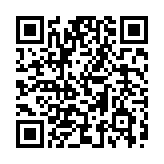
bc1pu34s92tpl0j3cp7dfvm87zgyn4mdkp5nx5ckaeczuhunpsf7qgcshf4ptg
Comments